Invoices Management
How to issue Invoice via KSeF?
Sales Pack required
Please keep in mind that feature will not work if you don't have Sales Pack extension.
Enable invoices first
This feature will only work if you enable invoices in KSeF profile (details above).
Review issued invoice!
Please keep in mind that software may contain bugs and mistakes. Check your specific usecase with test profile before you start using with production KSeF Profile.
- Go to Invoices.
- Create new Invoice.
- Choose KSef Profile.
- Click on
Issue via KSeF - After everything is fine, invoice will be scheduled for sending to KSeF.
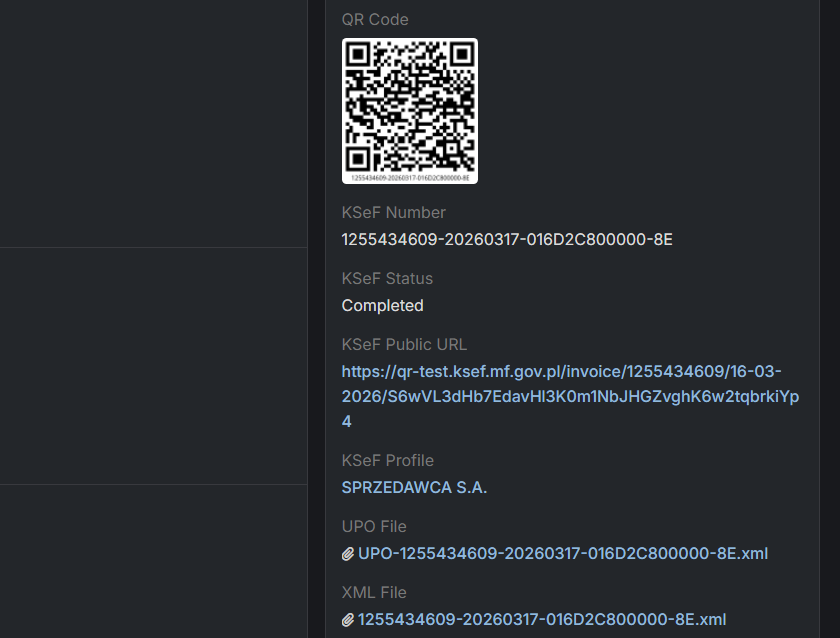
Unfortunatelly we can't pass invoice to KSeF in few seconds, that's why it's working in background. After invoice will be issued, field KSeF Status will be set to Completed.
When button Issue via KSeF will be visible?
Button is visible only when all of the following conditions are met:
- The record view is not in edit mode.
- Invoice
statusis not one of:Issued,Paid,Overdue,Confirmed. ksefStatusis either: -null, or - a string containing"Error".ksefProfileIdis notnull.
If any of these checks fail, the button is hidden.
KSeF fields in invoices
ksefNumber- KSeF number assigned to an invoice. Required on issued invoices.ksefStatus- status of invoice delivery to KSeF.ksefPublicUrl- public url to status page of invoice in KSeF.ksefProfile- profile which is used to issue an invoice and pass to KSeF.upoFile- XML file which confirm delivery to KSeF.xmlFile- XML file which contains invoice details.
How to set additional params for invoice?
Go to Layout manager and add proper fields into the detail view:
- Additional Accounts - you can add third party accounts to invoice and set their role
- Cash Method
- Reverse Charge
- Split Payment Mechanism
- Excemption Type - you can set also
Excemption Description - Relevant Period - if you want to specify different date than issuance, choose
Relevant DateorPeriod. In such scenario, add also additional fields:Date of Delivery or Service Completionor/andPeriod Start DateandPeriod End Date
How to issue invoices in different currencies?
- Enable additional currencies in settings
- Enter proper currency rates for each currency - you can also do it automatically (check out below)
- While creating new invoice, before adding anything to item list, change currency from PLN to something else
How to automatically update currency rates?
You can download our free extension to keep updated currency rates: NBP Extension
How to properly label PDF invoice
Warning
Please make sure the PDF displays accurate details that match the information sent to KSeF.
If you want to provide your customer with a PDF visualization of an invoice issued via KSeF, make sure the PDF contains values consistent with data sent to KSeF.
Include at least:
- KSeF number -
{{ksefNumber}} - Public link to the KSeF invoice page -
{{ksefPublicUrl}} - QR code for the KSeF public invoice page
{{qrCodeId}}
For invoices issued in offline mode, include an additional (second) QR code required for offline identification/verification.
How to print QR Code on PDF?
You can use barcode generated by KSeF integration which is stored in invoice (field qrCodeId) or you can generate your own QR Code with link to adjust barcode design:
{{barcodeImage ksefPublicUrl_RAW type='QRcode' width=60 height=60 fontsize=14 text=false padding=2}}