Authorization
This guide explains how to configure authorization for the KSeF integration. You will learn how to generate security tokens and manage authentication certificates within EspoCRM to ensure a secure connection with the National e-Invoice System.
Initial Access to KSeF (for non-JDG users)
If you have never logged in to KSeF and you do not operate as a sole proprietor (JDG), first submit the ZAW-FA(3) form in e-Urząd Skarbowy (e-US).
Where to find the form
In e-US, go to:
Dokumenty > Złóż dokument > Zawiadomienie o nadaniu lub odebraniu uprawnień do korzystania z Krajowego Systemu e-Faktur (ZAW-FA)
Who can submit ZAW-FA(3)
- A natural person (to report unique data linked to a qualified electronic signature certificate).
- A general proxy for another natural person (same scope as above).
- A general proxy for a non-natural-person entity (grant/revoke permissions, including all permissions, and report unique data linked to the taxpayer’s qualified electronic seal certificate).
- An Organization Account User (UKO) for an organization (grant/revoke permissions, including all permissions, and report unique data linked to the taxpayer’s qualified electronic seal certificate).
How to Generate a KSeF Token
- Log in to the KSeF web application (environment links are provided below).
- Navigate to the Tokens section.
- Generate a new token and assign permissions to issue and read invoices.
- Securely save the generated token and paste it into your KSeF Profile within EspoCRM.
Example of a KSeF Token
20270115-EC-7FA3B1D200-AB12345F6A-01|nip-987654321|a1b2c3d4e5f60718293a4b5c6d7e8f90123456789abcdef0123456789abcdef0
How to Generate KSeF Certificates
You will need two certificates
Please note that the KSeF system requires two distinct types of certificates:
- Authentication: Used for verifying your identity when connecting to the system.
- Offline: Used solely to verify the authenticity of the issuer and the integrity of invoices in offline mode.
To generate a new certificate, log in to the appropriate environment:
- Production: https://ap.ksef.mf.gov.pl/web/
- Demo: https://ap-demo.ksef.mf.gov.pl/web/
- Test: https://ap-test.ksef.mf.gov.pl/web/
Navigate to the Certificates section and request a new certificate. Ensure you select the correct type (Authentication or Offline).
Once the package is ready, you will receive a notification in EspoCRM containing a direct link to the certificate package.
How to Add a KSeF Certificate to EspoCRM
- Navigate to the Administration section.
- Search for KSeF Settings and open it.
- Select the KSeF Profile you wish to update.
- Click the Edit button.
- Set the Authorization Type to
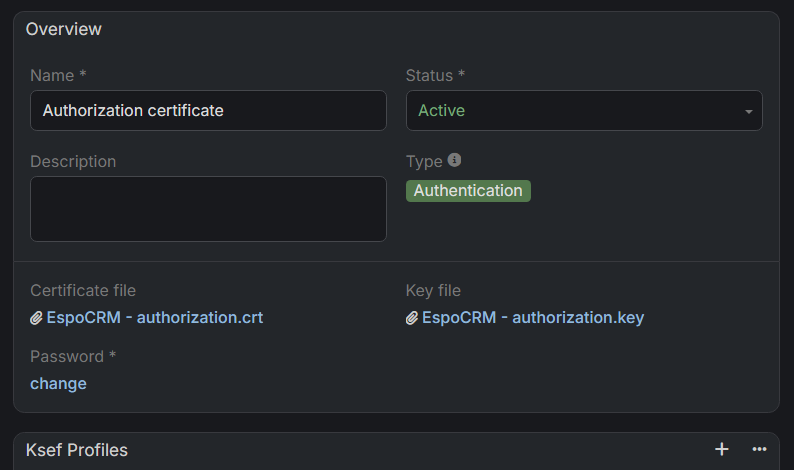
Certificate. - Link the appropriate certificate to the corresponding field. * Note: If you haven't uploaded the certificate to EspoCRM yet, click the arrow icon in the link field and select the option to create a New KSeF Certificate. * Upload your certificate and key files, and provide the password if applicable. * Click Save to link the certificate to the profile.
- Repeat the process for the second certificate type.
You can link a single certificate to multiple KSeF Profiles. Before proceeding, ensure the certificate status is set to Active.